How it works
From the first run to your first hidden passport.
Paperwise opens on your Vault, not on a camera. Here is the whole journey, with the buttons as the app shows them.
-
1 · First run
Your private vault, with a scanner built in
The first screen says what Paperwise is: one place on your iPhone for IDs, papers, photos, notes and cards, with Hidden for what should stay invisible. AI is off until you turn it on. If you already have a Paperwise backup in iCloud, you can restore it right here.
Your first run -
2 · Face ID for your vault
The app lock, on from the start
Right after the welcome, on a new install (and after a restore from your backup), “Face ID for your vault” is offered switched on, and it turns on after a successful Face ID. From then on Paperwise opens with Face ID, and the app switcher shows a cover instead of your things. You can change it, and how soon it locks, in Account → Lock and privacy; turning it off asks for Face ID first.
With the app lock off, the vault opens without Face ID. Hidden always needs Face ID.
The app lock -
3 · The camera, and an account if you like
Pages are read on this iPhone
Next come the camera permission (Allow camera, or Not now) and an optional Sign in with Apple (Not now skips it). You don’t need an account for anything on your iPhone; it’s only for sync and Forward by email, and Sign in with Apple doesn’t share your name or email with us.
Sign in -
4 · Recovery key and backup
A key only you keep, and a backup we can’t open
The last step offers the free encrypted iCloud backup. It’s locked on your iPhone with a key protected by your recovery key, then stored in your own iCloud. Turning it on gives you a recovery key, shown once (or uses your account’s, if you signed in). Keep it somewhere that doesn’t depend on this iPhone, like a password manager or a printed copy: it’s the only way back in if you lose your devices, and we can’t recover it for you.
Your vault is encrypted with a key that never leaves this iPhone, so iPhone device backups and phone-to-phone transfers can’t bring it back. This is the backup to turn on.
Your recovery key -
5 · The Vault
Your things, sorted the way you’d sort a safe
After Face ID you land on the Vault. Sorted by Paperwise shows shelves (IDs and passports, Money, Health, Home, Work and school, Cards, Notes, Photos and videos, Files), each with a count. Below are Your folders, then More: All items, Shared links, Recently deleted and a quiet Hidden row.
Search sits at the top and reads inside every page, on your iPhone. It never searches Hidden.
The Vault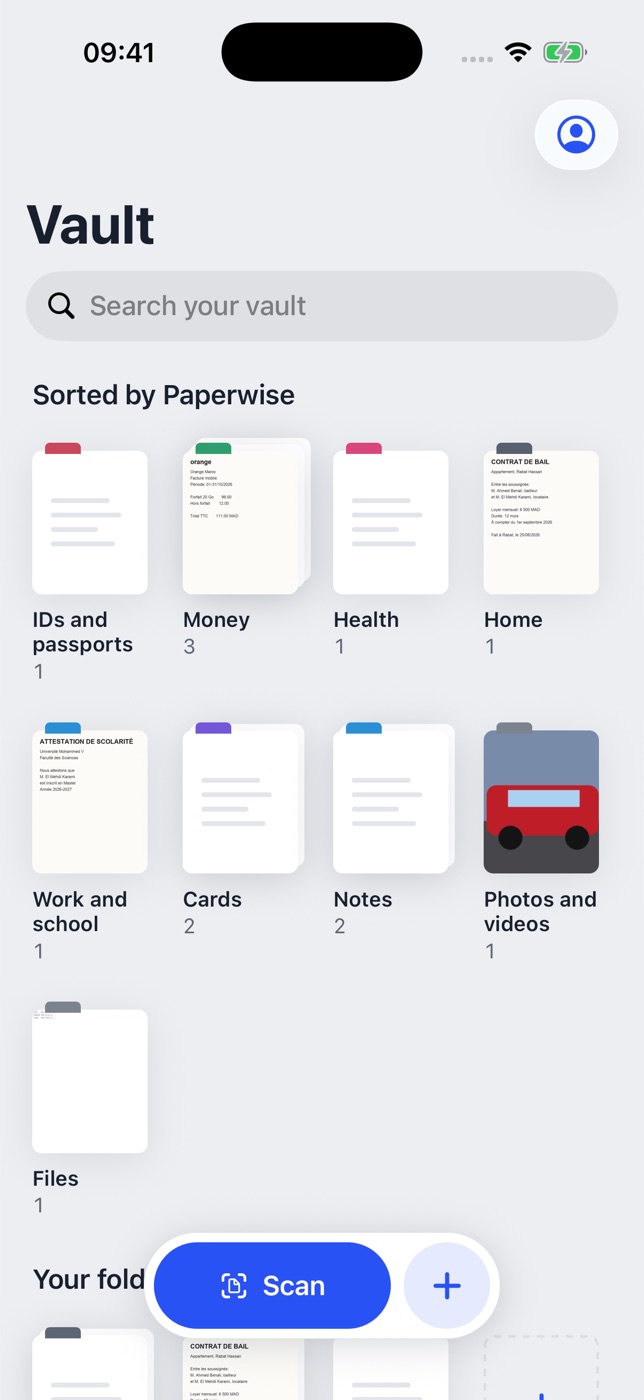
-
6 · Scanning
Scan is one tap from every list
The blue Scan button floats at the bottom of the Vault, every shelf, every folder and All items. It opens the camera: edges are found live, pages are cleaned up on your iPhone (low light, shadows and folds), and you can crop, rotate, reorder and pick a filter before you save.
The text is read on your iPhone so search can find it. Opened inside a folder, the scan is filed there.
Scan a document -
7 · The + sheet
One sheet with every way in
The + next to Scan opens Add to your vault: Scan document first, then Capture (Photo, ID card, Book, QR code, Count objects Pro), Create (Note, Checklist, Card), Import (From Photos, From Files, By email Pro) and Make from what you have (Merge scans, Convert a file).
From any other app, the share sheet’s Save to Paperwise brings things in too.
The Scan button and the + sheet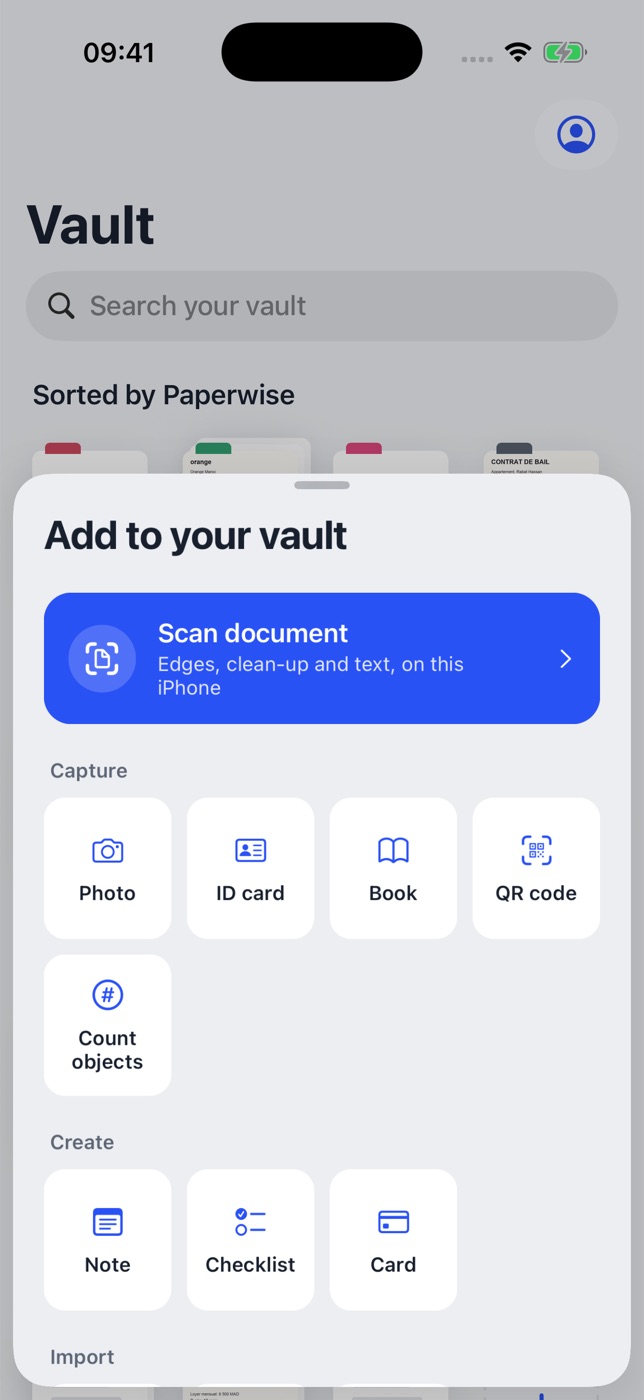
-
8 · A document
Every tool sits on the document
Open a document to see its Pages or its Text. The toolbar at the bottom holds everything: Edit (crop, rotate, filter, reorder, add pages, split, merge), Markup (sign, annotate, erase pen, watermark), Ask (the AI helper Pro), Share (PDF, JPG, Word, Excel, PowerPoint, a share link Pro) and More (rename, add to folder, duplicate, change type, Never send to AI, Move to Hidden, delete).
Working with a document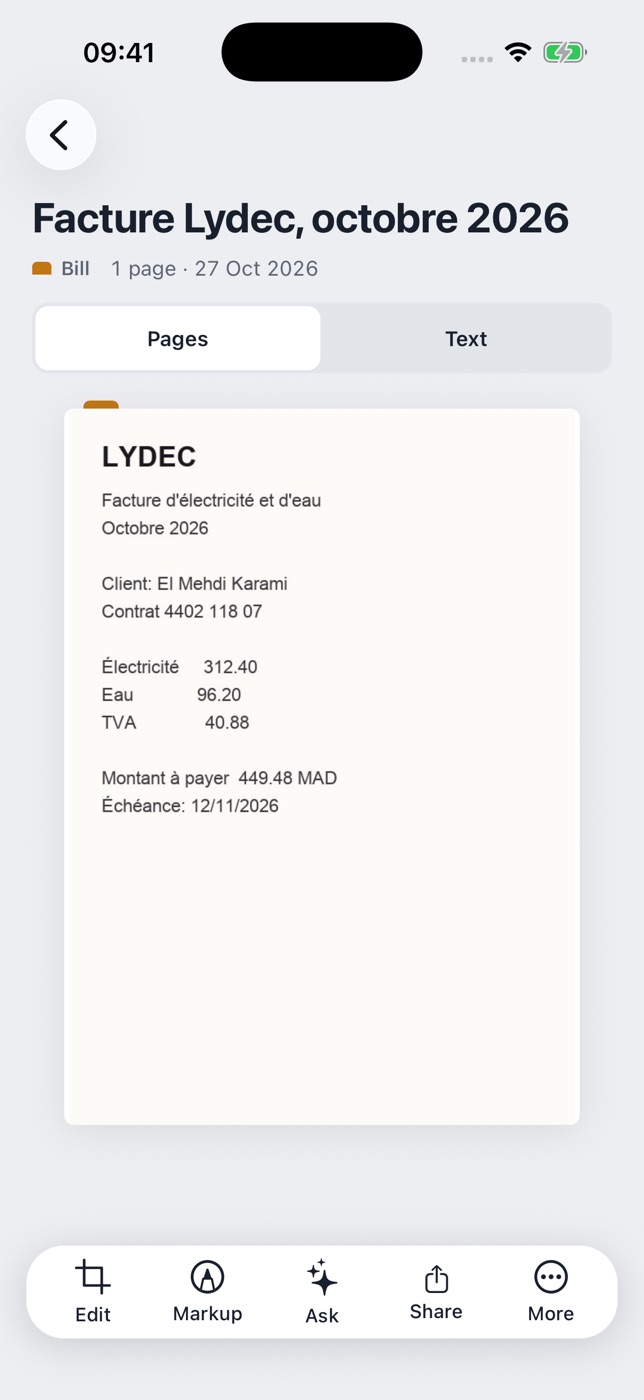
-
9 · Hidden
A private space that always needs Face ID
Tap Hidden at the bottom of the Vault. One screen explains it, Face ID sets it up, and you save its recovery key. Inside, the bar becomes Camera and +: shoot privately, scan, add files, write secure notes, or move photos out of Photos. Each item is encrypted by Paperwise as it’s saved.
Add a code or a 4×4 pattern for a second factor. With Pro, add separate spaces (up to 10), an emergency passcode and a disguised icon.
Set up Hidden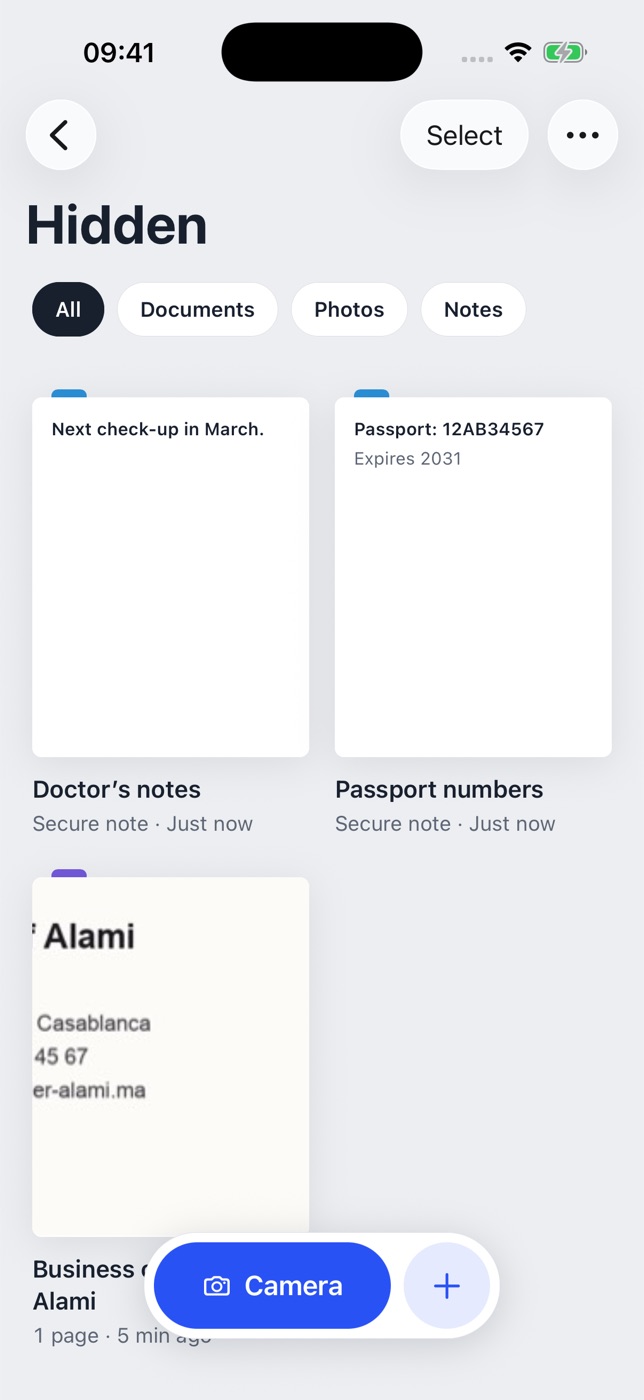
-
10 · iPad
The same vault, with a sidebar
On iPad the Vault becomes a sidebar, Scan and + move to the top bar, and you get keyboard shortcuts, drag and drop and Apple Pencil for signing and annotating. Sync (Pro) keeps your iPhone and iPad together, end-to-end encrypted.
iPad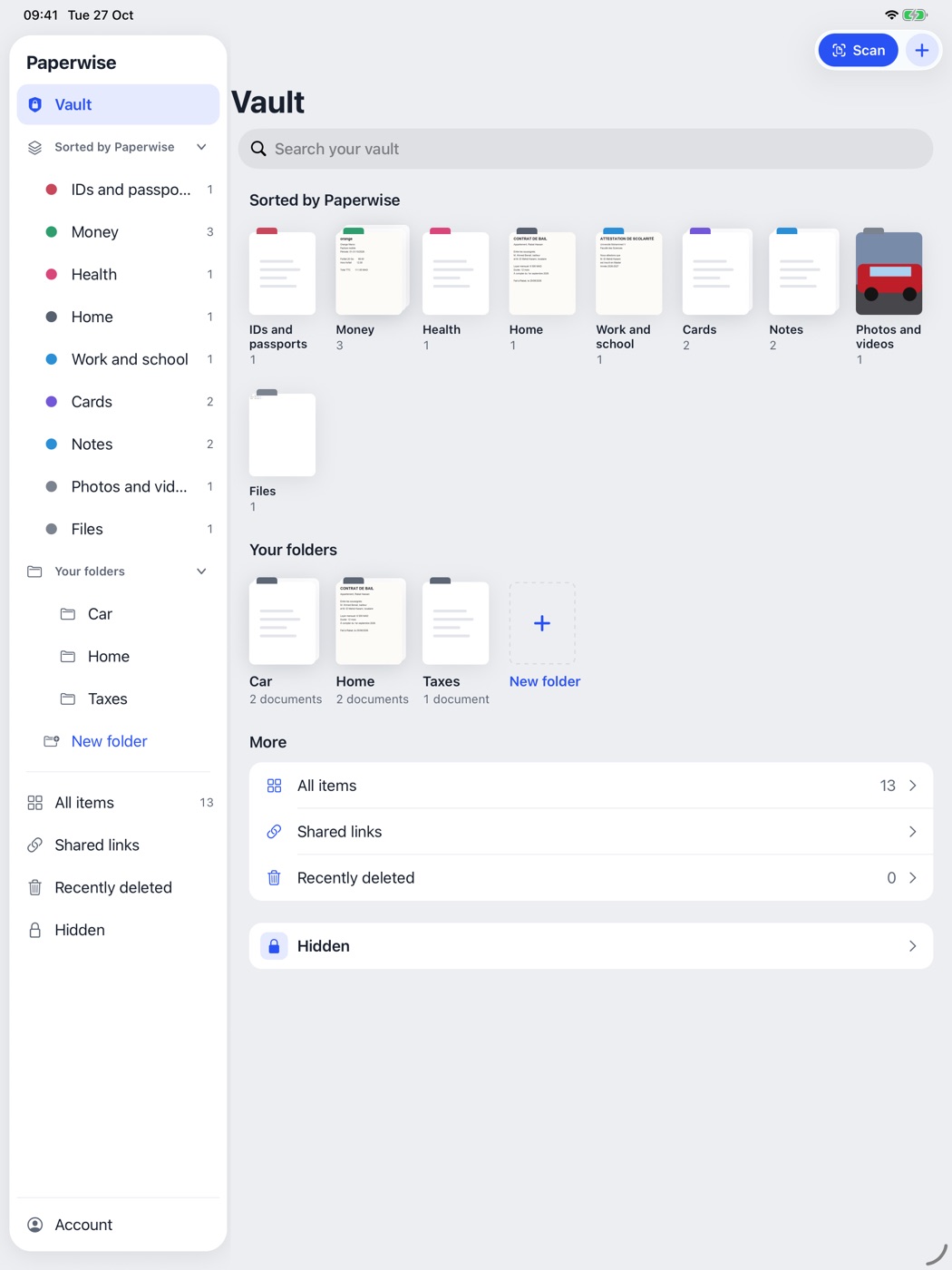
Ready when it’s on the App Store.
Questions in the meantime: support@paperwise.app.
Coming soon to theApp Store